7 Mistakes You're Making with Online Document Signing (and How to Fix Them)
September 15, 2026 · 7 min read
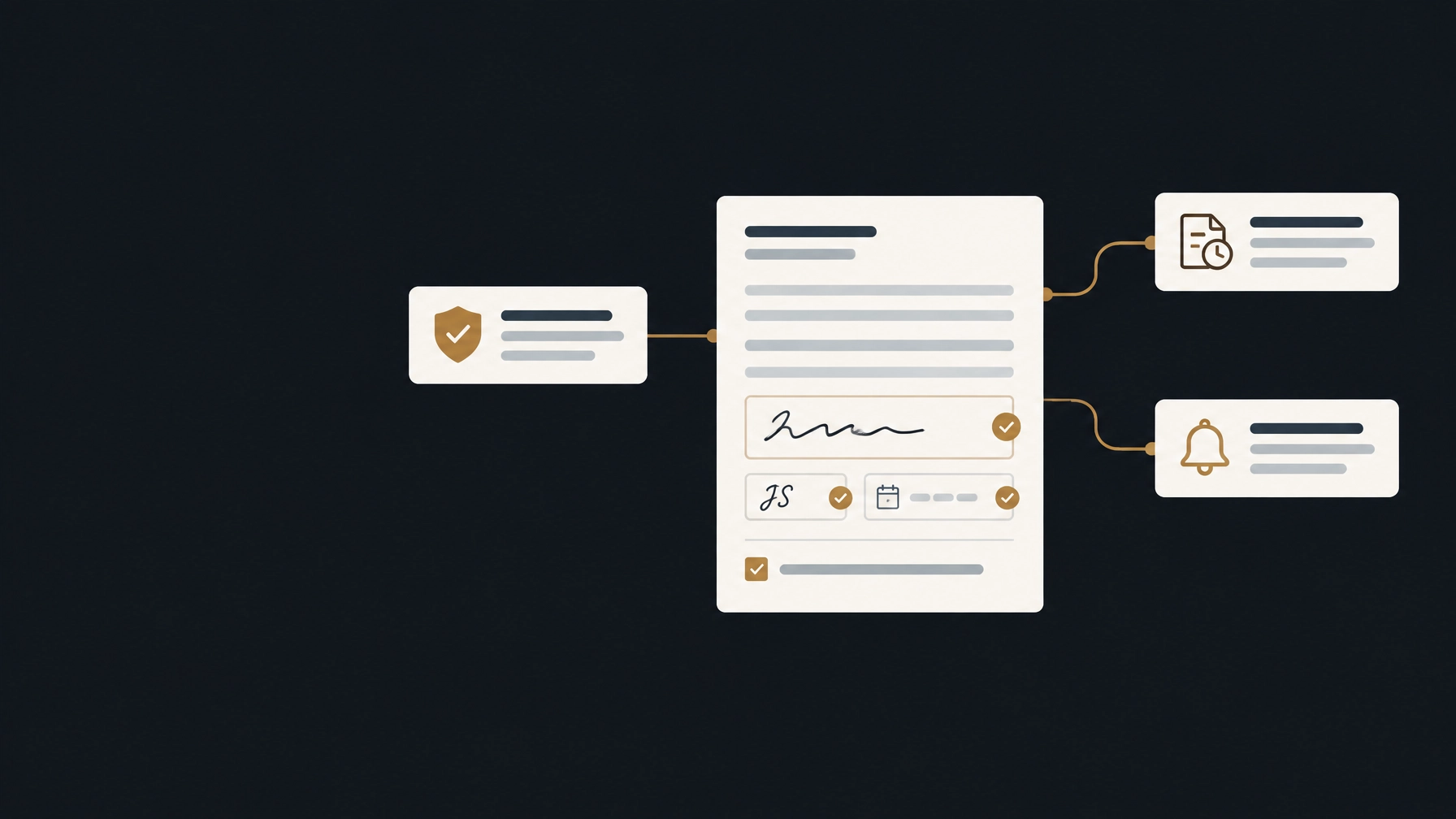
Online document signing should make contracts easier to complete, not harder to track.
Upload the document, place the fields, and send it. The signer opens a private link, reviews the document, gives consent, signs, and confirms. The system records what happened.
Problems usually start when a signing process skips one of those steps.
A missing consent record, an incomplete audit trail, a misplaced field, or a manual follow-up can delay a contract or make it harder to defend later. Here are seven common mistakes and the practical fix for each one.
1. Skipping explicit consent to sign electronically
A typed name or drawn signature is not the entire signing record. For most everyday electronic contracts in the U.S., the process should also show that the signer agreed to use electronic records and deliberately signed the specific document.
Why it causes problems
If consent is unclear, a signer may later say they did not understand that they were signing electronically. A signature image by itself does not explain:
- Whether the signer agreed to electronic transactions
- Which document they intended to sign
- Whether the signer took a deliberate action
- When the signing happened
This is one reason a standalone signature image is different from a complete electronic signature workflow.
How to fix it
Use an online document signing tool that includes consent and a deliberate confirmation step.
With Sign, the recipient:
- Opens a private signing link.
- Reviews the document.
- Provides the required signature or other fields.
- Selects a reason for signing.
- Confirms the completed document.
Sign records the consent and signing events in the document history. That record supports the signing process for most everyday contracts covered by the U.S. ESIGN Act and UETA.
This does not mean every document can be signed electronically. Wills, certain court filings, notarized documents, and other regulated records may have additional requirements. Check the rules that apply to your document before sending it.
2. Keeping only the final signed PDF
A completed PDF shows the result. It does not necessarily show how the result was reached.
Saving only the final document is a common mistake. If someone questions the signature later, you may need more than the signature graphic. You may need to show who opened the document, what they agreed to, when they signed, and whether the document changed.
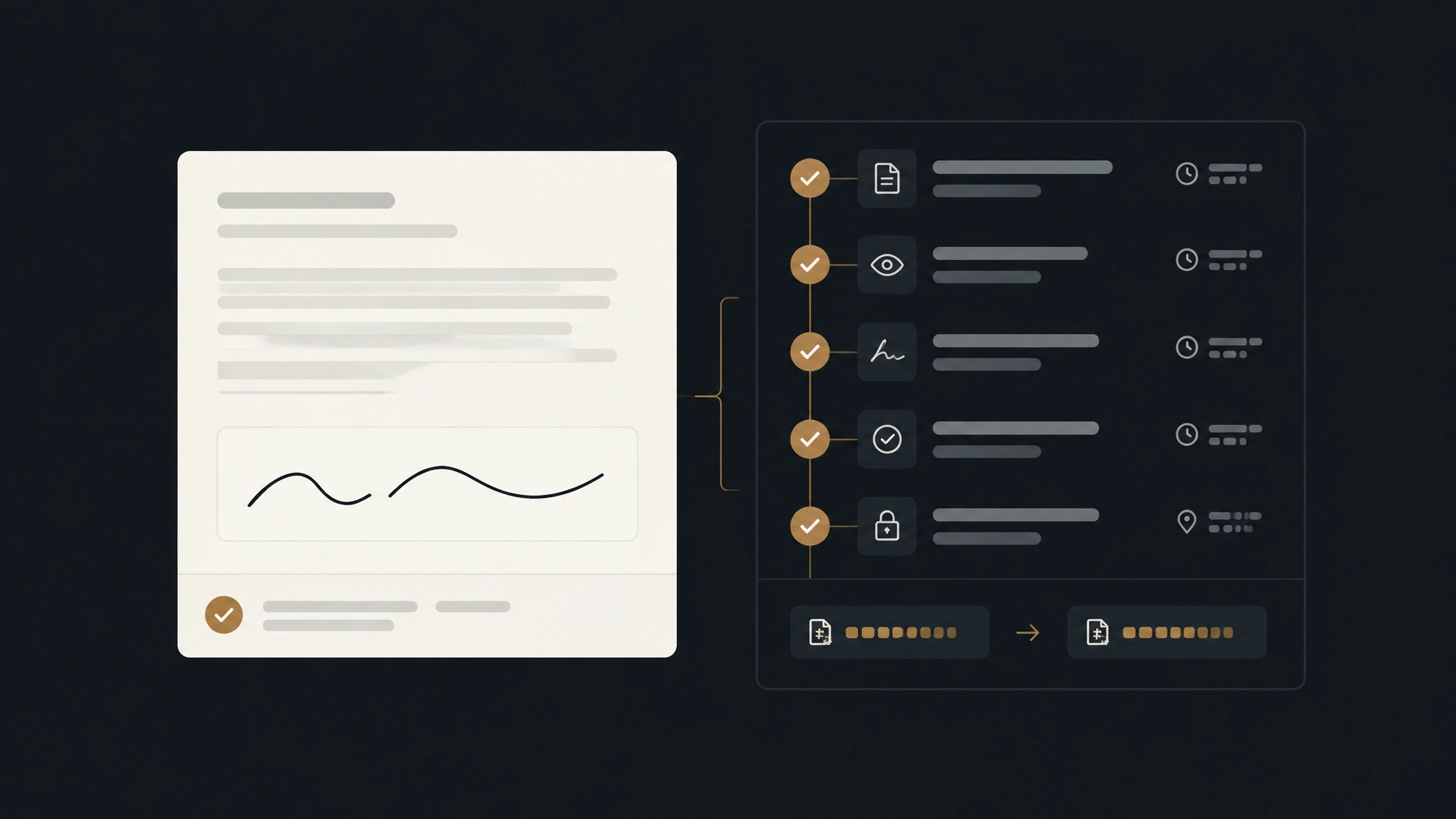
What a useful audit trail records
A complete electronic signature audit trail should connect the signer and the document to a sequence of recorded events.
Sign records:
- Document views
- Consent to electronic signing
- Signature actions
- Declines
- Timestamps
- Signer IP addresses
- Document hashes before and after signing
The document hash helps identify whether the file changed during the workflow. The event history shows what happened and when.
Sign also makes the audit trail available with the signed document and signed certificate. That is more useful than keeping a PDF with no surrounding record.
Read what makes an electronic signature legally binding for a closer look at consent, intent, and recordkeeping.
3. Emailing PDFs back and forth
Emailing a PDF and asking someone to print, sign, scan, and return it creates a process with too many uncontrolled steps.
The recipient may send back an old version. Someone may sign the wrong page. The file may be forwarded to another person. You may have no reliable record of which attachment was opened or when it was signed.
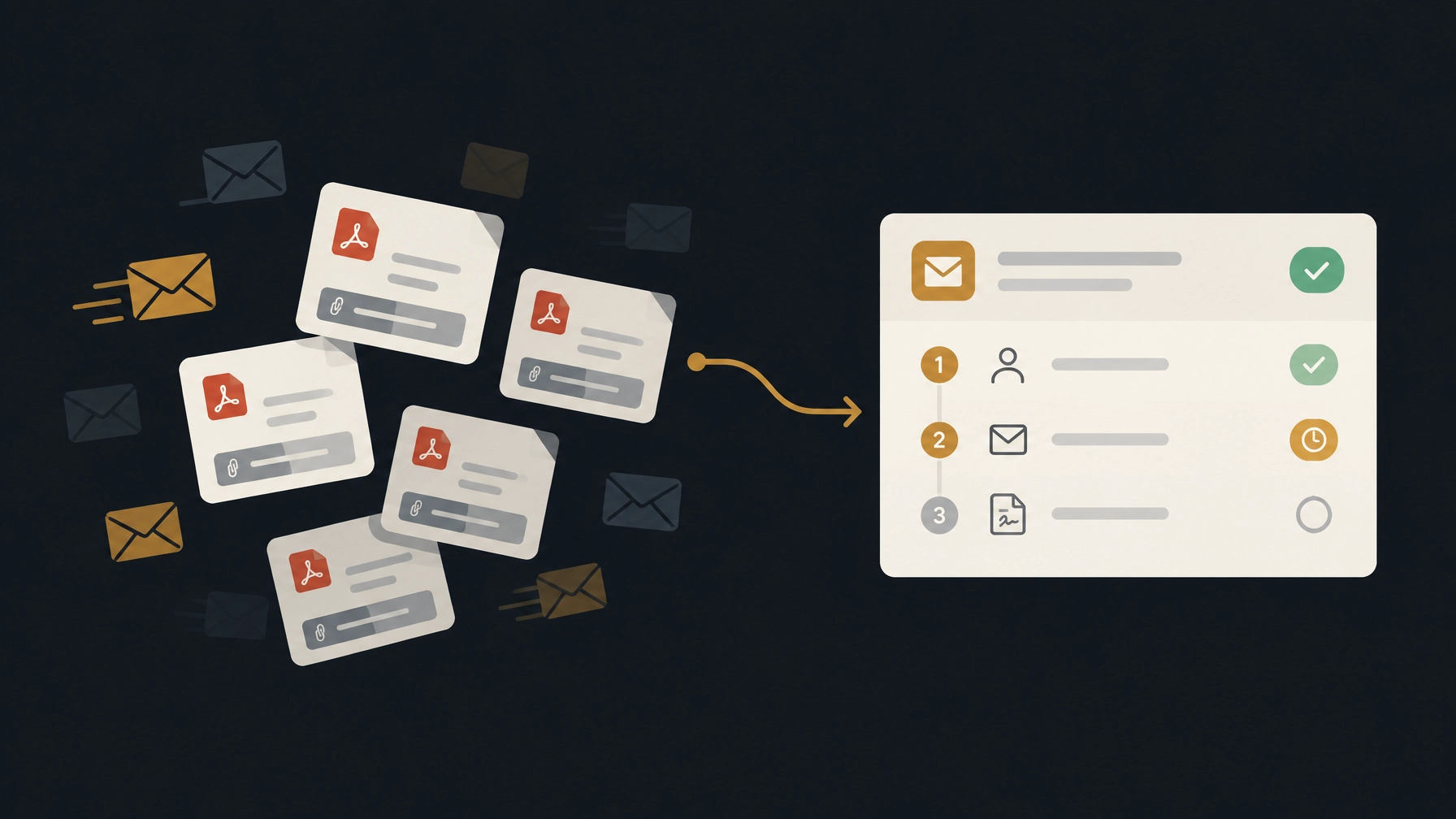
Why attachments create risk
Email is useful for communication, but it is not a complete signing workflow. An attachment does not automatically provide:
- A controlled signing link
- Assigned fields for each recipient
- A record of consent
- A document history
- Version control after signing
- A clear completion status
How to fix it
Convert the document to PDF, upload it to Sign, assign each recipient, and place the required fields before sending.
Each recipient receives a private signing link. They do not need to create a Sign account or install an app. Once everyone completes the required fields, the signatures are permanently applied to the completed PDF.
You can still use email notifications. The difference is that the document, fields, signing action, and record stay in one workflow.
See how to send documents for electronic signature for the full process.
4. Chasing every signer by hand
Sending a document is not the same as getting it completed.
A recipient may open the email, get interrupted, and forget to return. If you rely on a spreadsheet or memory to track every pending signer, follow-ups become another administrative task.
What manual reminders miss
Manual follow-ups can lead to:
- Missed deadlines
- Repeated messages to people who already signed
- Delays when several documents are pending
- Unclear ownership of the next action
- Contracts that sit unfinished for days
How to fix it
Use automatic reminders for envelopes that remain inactive. Sign sends a reminder to pending recipients after several days, so you do not have to track the schedule yourself.
You can also send a manual reminder from the dashboard when a document needs attention immediately. Every plan, including the free plan, includes automatic and manual reminders.
A reminder cannot make someone agree to a document. If a recipient does not want to sign, they can decline from the signing link with an optional reason. That gives you a clear outcome instead of an envelope remaining open indefinitely.
Read how automatic reminders get documents signed faster.
5. Treating an email address as complete identity verification
A unique signing link helps control access to a document. It does not prove every aspect of a person's identity.
If you send a contract to the wrong email address, use a shared inbox, or rely on an account that several people can access, the signing record may not answer the identity question you actually have.
How to fix it
Start with basic controls:
- Confirm the recipient's name and email address before sending.
- Use the correct signer instead of a general inbox where possible.
- Assign each field to the correct recipient.
- Check the completed document before relying on it.
- Use additional identity checks for higher-risk agreements when needed.
Sign records the signer's email-related workflow, IP address, timestamps, and signing actions. It does not claim to be a government ID verification service or a qualified digital signature provider.
For routine service agreements, NDAs, offer letters, leases, and similar documents, a controlled signing link and audit trail may be appropriate. For high-value transactions or regulated documents, ask whether your industry or jurisdiction requires stronger identity verification, notarization, or a different type of signature.
6. Sending the wrong version or leaving fields incomplete
An electronic signature cannot fix a document that was prepared incorrectly.
A missing date field, an unassigned signature field, an old contract version, or a blank section can send the workflow back to the beginning. The recipient may complete the document correctly but still leave you with an agreement that needs to be replaced.
How to fix it before sending
Use a short preparation check:
- Confirm the file name and document version.
- Review the parties, dates, amounts, and terms.
- Add every required signature, initials, date, text, and checkbox field.
- Assign each field to the correct signer.
- Resize fields so they fit clearly within the intended area.
- Check the signing order when multiple people are involved.
- Review the document once more before sending.
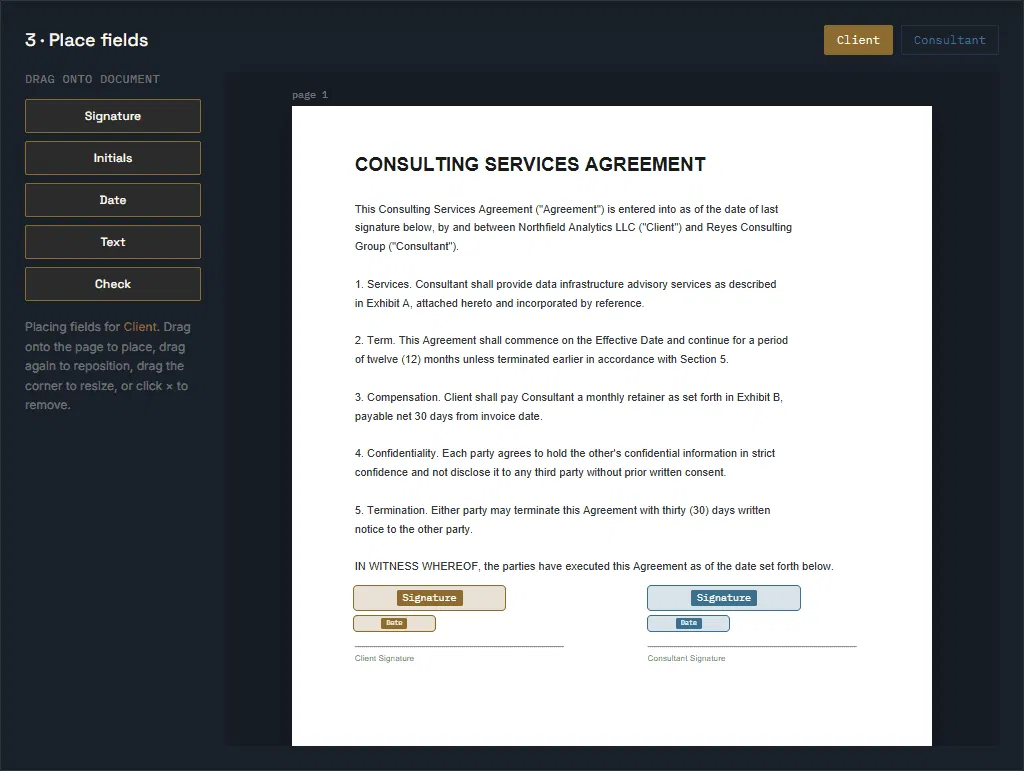
Sign lets you drag fields onto the document, reposition them, resize them, and reassign them between recipients. You can use the same process for a consulting agreement, hiring offer letter, NDA, lease, or other PDF.
Do not treat the send button as the preparation step. Review the document first. It is faster than correcting a completed agreement.
7. Making the signer create an account or install an app
Every extra step gives the recipient another reason to stop.
Requiring an account, desktop software, or a special app can slow down a simple agreement. This is especially noticeable when you are sending a document to a customer, contractor, tenant, job candidate, or partner who does not use your system regularly.
How to fix the signing experience
Keep the recipient workflow focused:
- Send a secure signing link.
- Let the signer open it in a browser.
- Show only the fields they need to complete.
- Ask for consent and a deliberate signing action.
- Let them confirm the document without creating an account.
Signers do not need a Sign account or app. They open the link, complete the assigned fields, choose a reason for signing, and confirm.
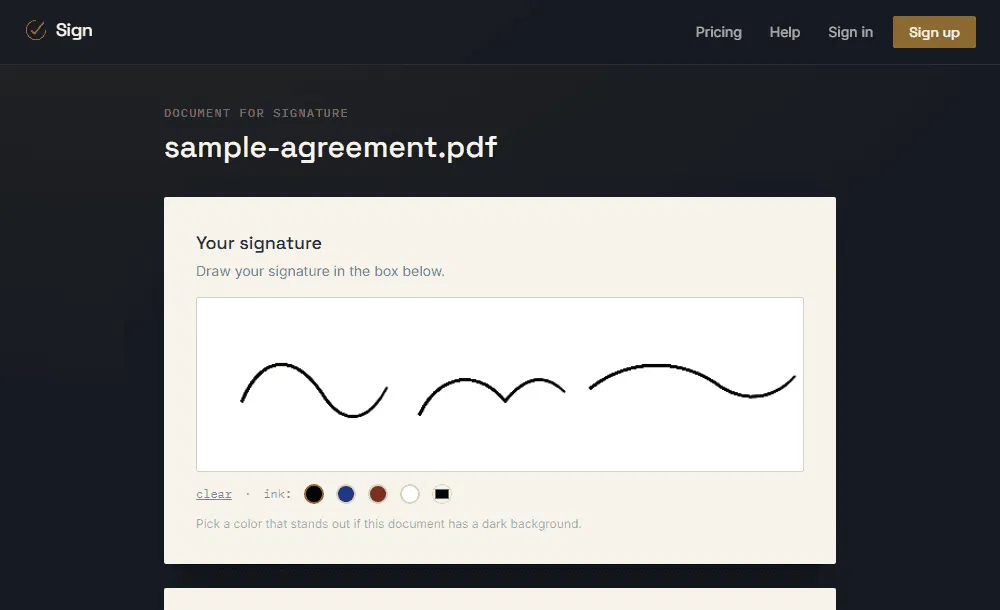
The sender still gets the completed PDF and the electronic signature audit trail. The signer gets a shorter process.
A better signing process is mostly about removing gaps
The most common mistakes are operational:
- Consent is assumed instead of recorded.
- The final PDF is saved without its history.
- Attachments move between inboxes with no controlled workflow.
- Someone has to remember every follow-up.
- Email access is treated as full identity verification.
- Fields and document versions are not checked.
- Signers are asked to create unnecessary accounts.
A practical online document signing tool handles these steps in one place. Sign handles the document upload, field placement, recipient links, consent, signatures, reminders, completion record, and audit trail.
You can start with 3 envelopes per month on the Free plan. No credit card is required. The Free plan includes the audit trail and automatic reminders. Starter is $8 per month for 25 envelopes, and Business is $19 per month for unlimited envelopes. See the full Sign pricing.